

Suggested keywords tie search terms to product codes in your catalog. When advertisers build campaigns, those terms appear during Targeting (search keyword selection) for the products they add. Advertisers can pick from suggestions instead of typing only custom keywords, which improves alignment with how your site indexes search and how you want campaigns to map SKUs to queries.
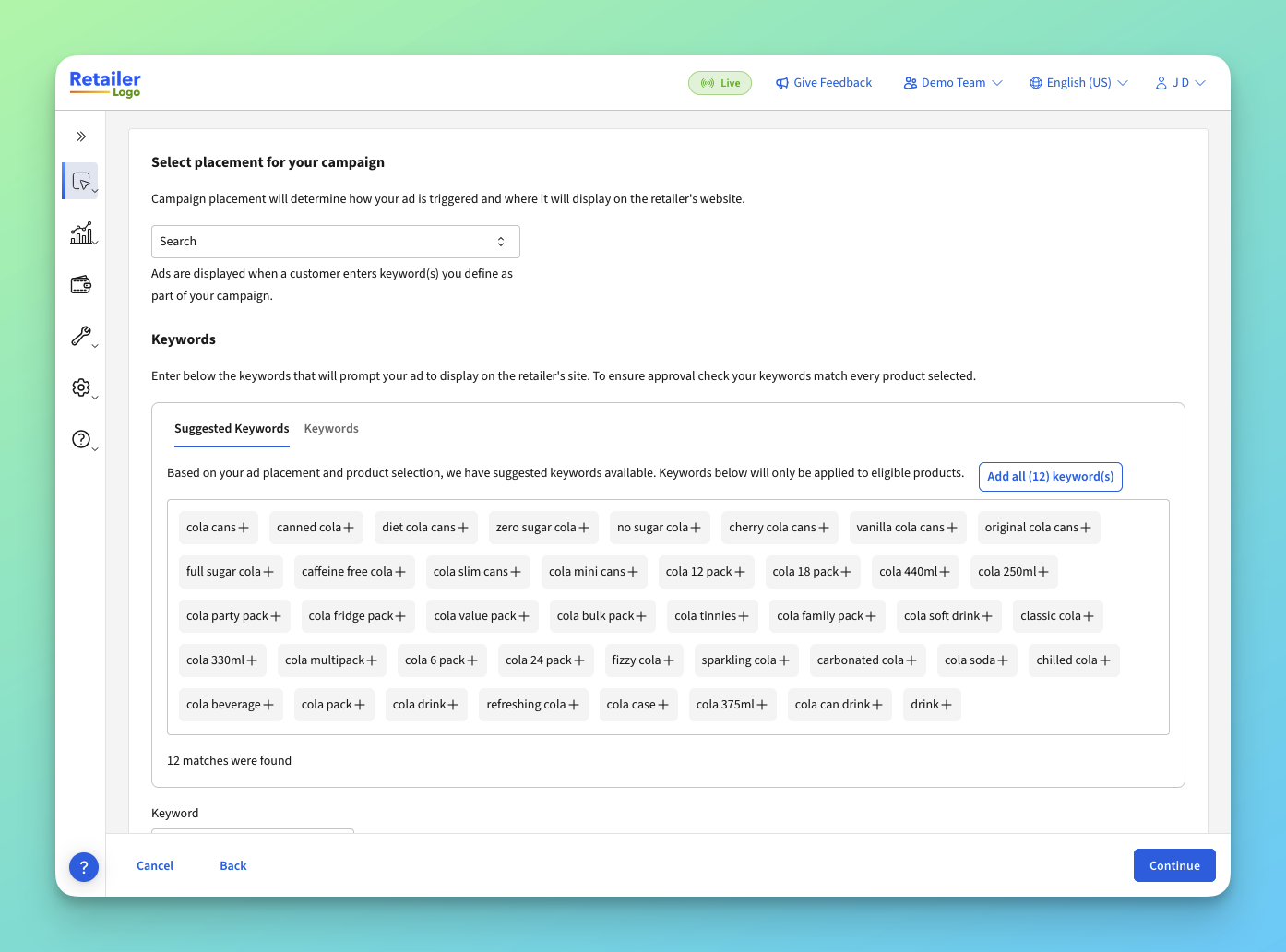
Suggested keywords can be supplied in two ways:
- Epsilon AI-generated keywords — Epsilon generates, classifies, and loads product–keyword pairs on your behalf. You are not required to maintain a separate keyword file for those suggestions when this path is your sole source. Generation uses product and catalogue context, shopper search behaviour, and signals aligned to your retailer business rules (for example brand conquesting and other programme constraints).
- Retailer-managed TSV feed — You synchronise a file that maps each
product_codeto one or moresearch_termvalues, with optional rank and type. You manage the suggested keywords per product.
Retailers can choose to use Epsilon generated keywords only, your file only, or both (for example AI suggestions overlaid on an existing list, or a coordinated replace during rollout so existing approvals are handled deliberately).
If Epsilon is supplying AI suggested keywords for your programme and you do not need a retailer TSV feed, start with Step 3: Activate AI suggested keywords (beta). Use Step 2: Build the TSV file only when you maintain or supplement keywords via file.
Why use suggested keywords?
- Steer advertisers toward high-intent, product-accurate search terms
- Surface terms advertisers might not think of without guidance
- Increase competition on valuable keywords while staying within programme rules
- Reduce manual file work when AI generation is enabled
This guide covers
- Prerequisites and end-to-end flow
- API authentication for read/validate flows
- Step-by-step AI activation (beta) and optional TSV implementation
- Sandbox testing, go-live checklist, troubleshooting
Serving rules
When advertisers add suggested keywords to a campaign, only products linked to that keyword are eligible to serve on matching customer search terms.
The UI shows which products map to which suggested keywords:
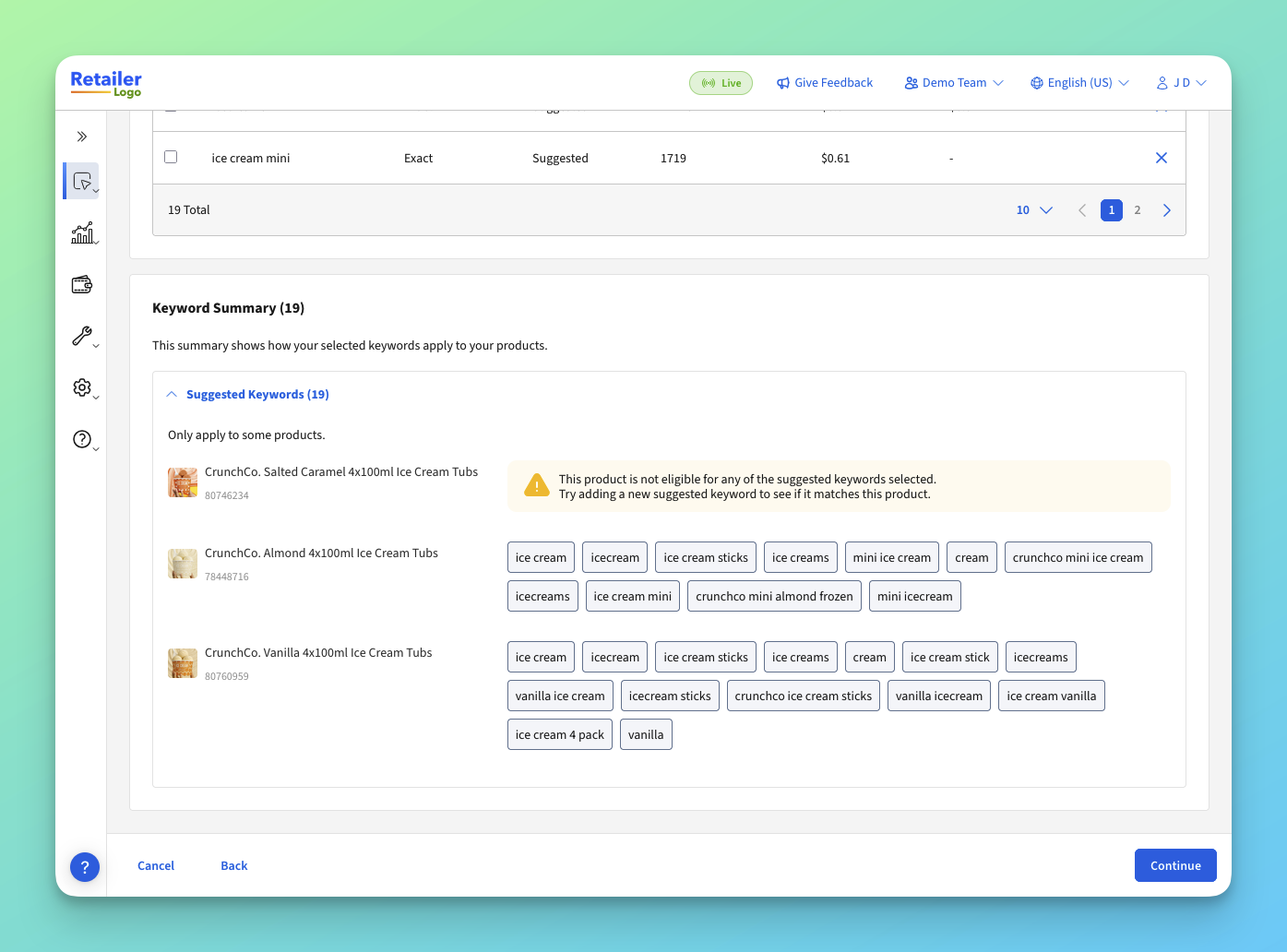
Custom search terms chosen by the advertiser typically apply across campaign products according to placement rules; suggested selections restrict eligibility using the retailer / Epsilon mapping.
사전 필수 조건
Use this checklist before you start.
- Retailer onboarded (or in progress) with Epsilon Retail Media, including catalog sync.
- Sandbox access to the campaign UI and APIs where you will validate keywords (when available for your programme).
- For TSV delivery: GCS bucket (or path) provisioned by Epsilon, and credentials your team can use to upload objects (method confirmed with Epsilon—often service account key or federated access). Note if you are only scoping, this is handled as part of the activation process if you are supplying keywords.
- Technical contact who can upload files, run API checks, and coordinate with Epsilon on ingestion schedules and cutovers.
- Release awareness: per-keyword product eligibility for suggestions requires platform (see Serving rules above).
Integration Flow Overview
- You confirm with Epsilon how keywords will be supplied: Epsilon generated, TSV file, or both.
- If you are providing a file, upload it to the GCS bucket provisioned by Epsilon.
- Epsilon enables the capability and (for files) ingests your file. For AI keywords, Epsilon aligns on rules, optional overlay vs replace, and staging validation.
- Data lands as suggested keywords in the platform.
- You verify in your sandbox directly in the UI prior to launch to your advertisers.
- You go live in production and tell advertiser teams that suggested keywords are available.
Step-by-Step Implementation Guide
Step 1: Confirm your supply model with Epsilon
목적
Avoid building a file pipeline if AI-only meets your needs, or avoid duplicating work if Epsilon will overlay/replace lists for you.
What you need to do
- Decide: AI only, TSV only, or both.
- Confirm overlay vs replace for any existing suggested-keyword data.
- Confirm which placements exist (
ORGANIConly vs alsoCROSS_SELL/SUBSTITUTE).
Step 2: Activate AI suggested keywords
목적
Get Epsilon-generated, rule-filtered keywords into the platform without maintaining a TSV.
What you need to do
- Engage Epsilon — Provide your specific business rules (for example brand conquesting), and how new data should relate to existing lists if you already sync suggested keywords (overlay vs replace).
- Test in sandbox — Work with Epsilon to load or review keywords in staging/sandbox. Dry-run Targeting in the campaign UI: pick products and confirm suggested phrases look correct.
- Production — After sign-off, Epsilon enables production. You communicate to advertiser teams that suggested keywords are live (the UI will show them once enabled).
How AI Keyword suggestions work
- Understand the product - Modelling uses product intent, retailer context, and language.
- Generate keywords - Candidate keywords are produced from that understanding.
- Classify - Keywords are selected using ad and search data so programme rules (for example brand conquesting or retailer-specific policies such as targeting the ingredients of a product) are respected.
- Load for the UI — Product–keyword pairs are stored in the same system used by the suggested keyword flow in campaign setup.
Governance
- Approval behaviour (auto vs manual retailer review) depends on programme configuration agreed with Epsilon.
- If you have little ad-query history, you may be asked to share a short sample of organic on-site search requests (for example about seven days) so generation matches real shopper language.
- Very large catalogs may scope generation to products with recent advertising activity (for example about the last 90 days) instead of every SKU—confirm with Epsilon.
- AI-generated suggested keywords (beta) currently focus on organic search use cases; support for additional placement types may expand.
Validation
- Suggested keywords appear in sandbox Targeting for products in scope.
- Approval behaviour (auto vs manual review) matches programme configuration.
Common errors
| 오류 | Fix |
|---|---|
| Keywords look off-brand or off-policy | Refine business rules with Epsilon and re-run sandbox review |
| Few or no suggestions for large catalogs | Confirm whether generation is scoped to recently advertised SKUs |
(Optional for Step 2): Build your TSV file (retailer-supplied path)
목적
Supply authoritative product_code → search_term rows (and optional rank/type).
What you need to do
- Generate a tab-separated file of product and keyword linkages.
- Use UTF-8 encoding and LF line endings.
- Include a header row that matches the field names your feed specification uses; at minimum:
product_code,search_term,search_term_type. See Data Models & Field Definitions. - Keep around ~20 suggested keywords per product for usability.
- Repeat
product_codeon multiple lines for multiple terms; use**search_term_type** when you have multiple placement kinds. - Validate the file, then deliver it to the GCS bucket Epsilon provisions.
Note: When you synchronise a retailer feed, Epsilon Retail Media provisions a GCS bucket for drops. Platform operations must finish configuration—allow turnaround time for activation.
Example file (snippet)
product_code	search_term	search_term_rank	search_term_type
abc123	cereal	1	ORGANIC
abc123	cereals	2	ORGANIC
12345	milk	1	CROSS_SELL
Validation
- Open in a text editor: fields separated by tab, no stray CR-only line endings.
- Spot-check several
product_codevalues exist in your catalog feed.
Common errors
| 오류 | Fix |
|---|---|
| CSV commas instead of tabs | Re-export as TSV |
| Wrong product IDs | Align with gtin / item used in catalog sync |
| Too many lines per SKU | Trim to the highest-value terms |
Step 3: Verify suggestions in the UI
목적
Catch last-minute mapping issues before production.
What you need to do
- In sandbox, create or edit a campaign, select placements that support suggested keywords, add products, open Targeting / keyword selection.
- Confirm suggested phrases per product and that custom vs suggested behaviour matches your expectations (see **Serving rules in Overview).
- Confirm suggested selections restrict eligible products to those linked in your feed or AI pipeline.
Validation
- In your sandbox UI: suggested keywords appear for products linked to keywords in your file or AI pipeline.
- Suggestions align to placement and catalog expectations.
Common errors
| 오류 | Fix |
|---|---|
| Suggestions only on one catalog | Backfill other catalogs or adjust campaign catalog scope |
| Wrong placement type showing | TAM reviews placement ↔ search_term_type configuration |
Data Models & Field Definitions
TSV (retailer file)
| 필드 | 유형 | 필수 입력 항목입니다 | 설명 | Accepted values |
|---|---|---|---|---|
product_code | 문자열 | 예 | Retailer product identifier; same as catalog gtin / item where applicable | Non-empty; must exist in synced catalog |
search_term | 문자열 | 예 | Keyword or phrase suggested for the SKU | UTF-8 text; avoid control characters |
search_term_rank | 정수형 | 아니요 | Relative relevance; 1 is highest | Positive integers; lower = higher priority |
search_term_type | 문자열 | 아니요 | Maps rows to placement kinds | ORGANIC, CROSS_SELL, SUBSTITUTE; default treated as ORGANIC if omitted |
| (line endings) | — | — | File format | LF; file encoding UTF-8 |
Placement types and search_term_type
search_term_typesearch_term_type aligns with placement types: ORGANIC, CROSS_SELL, and SUBSTITUTE.
Most retailer programmes use a single organic search placement for standard search results ads. CROSS_SELL and SUBSTITUTE are separate placements on the search page (or related inventory) with different serving intent—they are not just extra columns in the same organic auction. Your Technical Account Manager confirms which placements exist for your namespace.
How placement types differ
- Organic — Ads matched to the shopper's search intent for the product (for example a cola product on "cola").
- Cross-sell — Complementary intent (for example pizza on "cola").
- Substitute — Similar-product intent (for example another cola variant on "cola").
You can synchronise one feed per placement type or combine types in a single file (repeat product_code with different search_term_type). Your Technical Account Manager configures placements so the correct suggestion type appears per surface. Suggested keywords can be shown or hidden per placement.
Combined types for one product:
| product_code | 검색 기간 | 검색어 순위 | 검색어 유형 |
|---|---|---|---|
| 12345 | 쿠키 | 1 | 오가닉 |
| 12345 | 쿠키 | 2 | 오가닉 |
| 12345 | 우유 | 1 | 교차 판매 |
Note: Most programmes only use organic search placements. CROSS_SELL and SUBSTITUTE correspond to additional placements, not "extra columns" in the same organic slot—confirm which placements you operate with your Technical Account Manager.
Multiple catalogs
Implement suggested keywords across all catalogs in your namespace when possible (whether from your feed, AI generation, or both). This reduces brand confusion when one catalog has suggestions and others do not.
For multi-catalog campaigns, if only one catalog has data, campaigns that depend on suggested selections only behave fully on that catalog.
##
Testing, Sandbox, and Go-Live
Sandbox / test environment
- Validate UI suggestions in the campaign Targeting step.
Sample test cases
| Test | Steps | Expected result |
|---|---|---|
| UI suggestions visible | Add products in sandbox campaign; open Targeting | Suggested keywords appear per product |
| Serving rule | Select a suggested keyword linked to subset of products | Only linked products eligible for that term |
| Multi-catalog coverage | Repeat UI check across catalogs in namespace | Suggestions present on all catalogs with data (or scope documented) |
Go-live checklist
- TSV ingested without errors (if using file path) or AI pipeline signed off (if using beta)
- Suggested keywords visible in sandbox UI for representative products
- Multi-catalog namespaces have coverage on all catalogs (or scope documented)
- Advertiser communication sent before or at production enablement
- Partner API returns expected rows in production (spot-check)
Troubleshooting & FAQ
Problem: Suggestions never appear in the UI.
Likely cause: Ingestion not enabled, wrong catalog, or placement not configured.
Solution: Confirm with Epsilon that GCS ingestion or AI pipeline is active; verify placement mapping for search_term_type.
Can we use one TSV for multiple placement types?
Yes. Repeat product_code on multiple lines with different search_term_type values. Your Technical Account Manager configures which types surface per placement.
What if we have multiple catalogs in one namespace?
Implement suggested keywords across all catalogs when possible. Campaigns that depend on suggested selections only behave fully on catalogs with data.
When contacting support, include:
- Namespace and catalog ID
- Sample
product_codeand expectedsearch_term